How To Build The Best Trading Monitor Setup In 2026

Editorial Note: While we adhere to strict Editorial Integrity, this post may contain references to products from our partners. Here's an explanation for How We Make Money. None of the data and information on this webpage constitutes investment advice according to our Disclaimer.
A good trading monitor setup starts with choosing the right screen size, resolution, and panel type. Most traders do well with a 27-inch QHD or 32-inch 4K IPS display. Your layout depends on your strategy. Day traders often benefit from two or three screens, while swing traders may only need one. The key is to match your monitor setup to how you actually trade, not to how it looks.
Your monitor setup for trading is one of the most practical upgrades you can make as a trader. It affects how clearly you read charts, how fast you spot opportunities, and how comfortable you feel during long sessions. But with so many screen sizes, resolutions, and layouts to choose from, it is easy to overspend or overcomplicate things.
This guide covers everything you need to know. We break down what to look for in a trading monitor, which screens are worth buying in 2026, how many monitors you actually need for trading based on your style, and how to set up multiple monitors step by step. Whether you are building a monitor setup for Forex trading or a stock trading screen setup, this article gives you only the tips that actually matter.
What to look for in a trading monitor?
Picking the right trading monitor comes down to five things: screen size, resolution, panel type, refresh rate, and comfort features. You do not need the most expensive option. You need the one that fits your trading style and desk space. Here is what matters most.
Screen size. The best screen size for trading depends on how many charts you watch at once. A 27-inch display is the most popular choice for a single monitor setup. It gives you enough room to view two or three charts side by side without squinting. If you prefer larger displays, a 32-inch screen works well for 4K resolution. Ultra wide monitors in the 34-inch range are also a strong option for traders who want one wide display instead of two separate ones. So what monitor size is best for day trading? For most day traders, 27 inches hits the sweet spot between clarity and workspace.
Panel type. IPS panels remain the top choice for a trading screen. They deliver accurate colors and wide viewing angles, which matters when you glance at a side monitor from an angle. VA panels offer deeper contrast, which some traders prefer for dark-themed charts. OLED displays have become more affordable in 2026, but they still carry a burn-in risk with static content like trading dashboards. For most traders, IPS is the safest pick.
Refresh rate. Trading does not need a gaming-grade refresh rate. A standard 60Hz or 75Hz monitor handles chart updates smoothly. Higher refresh rates like 144Hz will not hurt, but they add cost without a meaningful benefit for trading. Spend that budget on better resolution or a larger screen instead.
Curved vs flat. Is a curved monitor better for trading? It depends on size. For a standard 27-inch display, a flat screen works fine. But if you use a 34-inch ultrawide as your main trading monitor, a curved panel reduces distortion at the edges and feels more natural. Curved displays are not a must-have, but they are a nice upgrade for ultrawide setups.
Resolution. The best resolution for trading monitors in 2026 is QHD (2560x1440) or 4K (3840x2160). QHD is sharp enough for most chart work and runs smoothly on mid-range hardware. Are 4K monitors good for trading? Yes, especially if you use a 32-inch or larger screen. 4K gives you more detail on candlestick charts and lets you fit more data on a single display. The table below compares both options.
| Feature | QHD (2560x1440) | 4K (3840x2160) |
|---|---|---|
| Best screen size | 27 inches | 32 inches or larger |
| Text clarity | Sharp at normal scaling | Very sharp, may need scaling |
| Multitasking space | Good for 2-3 chart windows | Great for 4+ chart windows |
| Hardware demand | Low to moderate | Moderate to high |
| Price range (2026) | $200 - $350 | $300 - $600 |
| Best for | Swing traders, single monitor users | Day traders, multi-chart setups |
Best monitors for day trading in 2026
Choosing the best monitors for day trading is easier when you know what specs matter. Below is a shortlist of reliable displays that work well for Forex, stock trading, and general chart analysis. Every monitor on this list uses an IPS panel, supports at least QHD resolution, and falls within a reasonable price range for most traders.
| Monitor | Size | Resolution | Panel | Key feature | Price (approx.) |
|---|---|---|---|---|---|
| Dell U2723QE | 27" | 4K | IPS | USB-C hub, excellent color accuracy | $400 - $480 |
| LG 27UP850-W | 27" | 4K | IPS | HDR400, USB-C, good value | $300 - $350 |
| Dell S2722QC | 27" | 4K | IPS | Budget-friendly, USB-C | $330 - $370 |
| ASUS ProArt PA278QV | 27" | QHD | IPS | Factory-calibrated colors | $250 - $300 |
| LG 34WN80C-B | 34" | Ultrawide QHD | IPS | Wide view, USB-C connectivity | $400 - $500 |
| Dell P3223QE | 32" | 4K | IPS | Large screen, USB-C hub | $450 - $550 |
Here are a few tips to help you pick from this list:
Best overall for most traders. The Dell U2723QE offers sharp 4K detail, reliable colors, and a built-in USB-C hub. It is one of the best monitors for stock trading and works equally well in a monitor setup for Forex.
Best budget option. The Dell S2722QC gives you 4K resolution at a lower price. It is a solid starting point if you are building your first trading monitor setup without overspending.
Best ultrawide. The LG 34WN80C-B replaces the need for two smaller screens. It is a practical choice for traders who want a wide trading screen setup on a single display.
Best for color-sensitive work. The ASUS ProArt PA278QV comes factory-calibrated. If accurate chart colors matter to your strategy, this is a reliable monitor per trading session.
Prices change often, so check current listings before buying. These models represent strong value as of early 2026, but newer versions may appear throughout the year.
What is the best monitor setup? For most traders, any of the 27-inch 4K IPS options above paired with a clean desk and proper positioning will deliver excellent results.
How many monitors do you need for trading?
This is one of the most common questions new traders ask. The answer depends on your strategy, your budget, and how much data you need to see at once. More screens do not automatically make you a better trader. The goal is to give each monitor a clear purpose.
Here is a simple breakdown by trading setup type:
| Setup | Best for | What you can do |
|---|---|---|
| 1 monitor | Swing traders, beginners | View one or two charts with a split-screen layout |
| 2 monitors | Day traders, active traders | Dedicate one screen to charts and one to order execution |
| 3 monitors | Full-time traders | Add a third screen for news feeds, scanners, or extra charts |
| 4+ monitors | Professional or institutional traders | Run multiple strategies, watch several markets at once |
One monitor. A single 27-inch or 32-inch display is enough if you trade part-time or focus on a few pairs or tickers. Use your platform's built-in layout tools to split the screen into sections. This keeps your trading setup simple and affordable.
Two monitors. This is the most popular choice among active traders. A dual monitor setup lets you keep your charts on one screen and your order panel, watchlist, or news on the other. If you are building a Forex or stock trading workspace on a budget, two matching 27-inch QHD displays offer great value.
Three or more monitors. Full-time traders who watch multiple markets often use three screens or more. The extra space helps when you run scanners, economic calendars, and several chart timeframes at once. However, adding more monitors also means more cables, higher power use, and a bigger desk. Only expand when you have a clear reason for each additional screen.
Laptop traders. If y ou trade on a laptop and want extra screen space, you do not need to buy a desktop. Most modern laptops support at least one external display through HDMI or USB-C. To connect multiple monitors for trading on a laptop, use a USB-C or Thunderbolt docking station. Brands like CalDigit, Anker, and Plugable offer reliable hubs that support two or three external displays. This is one of the easiest ways to build a proper monitor setup for trading without replacing your computer.
How to set up multiple monitors for trading?
Once you have chosen your screens, the next step is connecting and configuring them properly. A well-planned multi-monitor setup reduces clutter and helps you focus on what matters. Follow these steps to get your trading screen setup running smoothly.
Step 1: Check your ports and cables
Look at the back of your PC or the sides of your laptop for HDMI, DisplayPort, USB-C, or Thunderbolt outputs. For the sharpest image, use DisplayPort 1.4 or HDMI 2.1 cables. These support 4K resolution at smooth refresh rates. If your device does not have enough ports, a USB-C docking station can add extra outputs. Make sure your graphics card supports the number of displays you plan to use.
Step 2: Connect and power on
Plug each monitor into its own port using the correct cable. Turn on all displays before booting your computer. Most systems will detect the new screens automatically. If a display is not recognized, try a different port or cable.
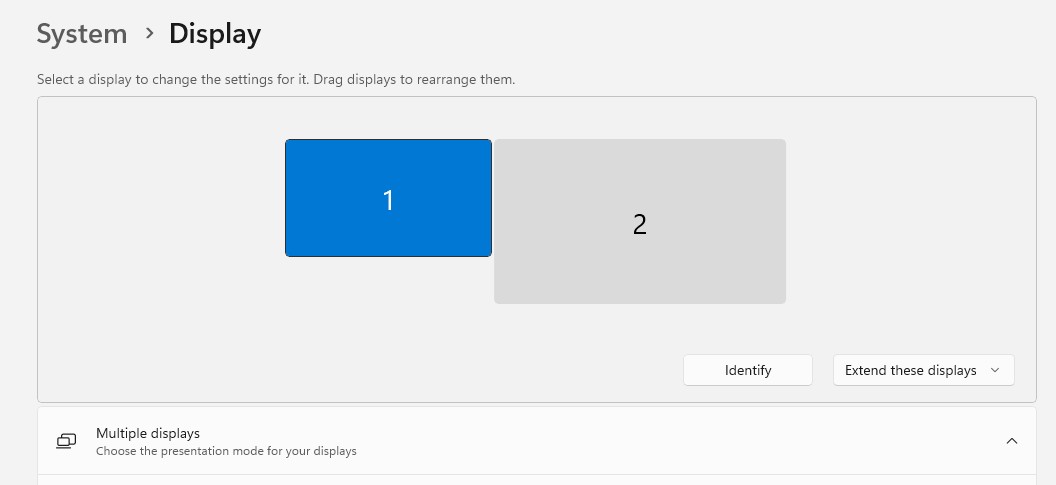
Step 3: Enable extended display mode
Open your display settings. On Windows 11, go to Settings, then System, then Display. Select each screen and choose "Extend these displays." On macOS, go to System Settings, then Displays, and uncheck "Mirror displays." Extended mode lets you spread your charts and platforms across all monitors instead of showing the same image on every screen.
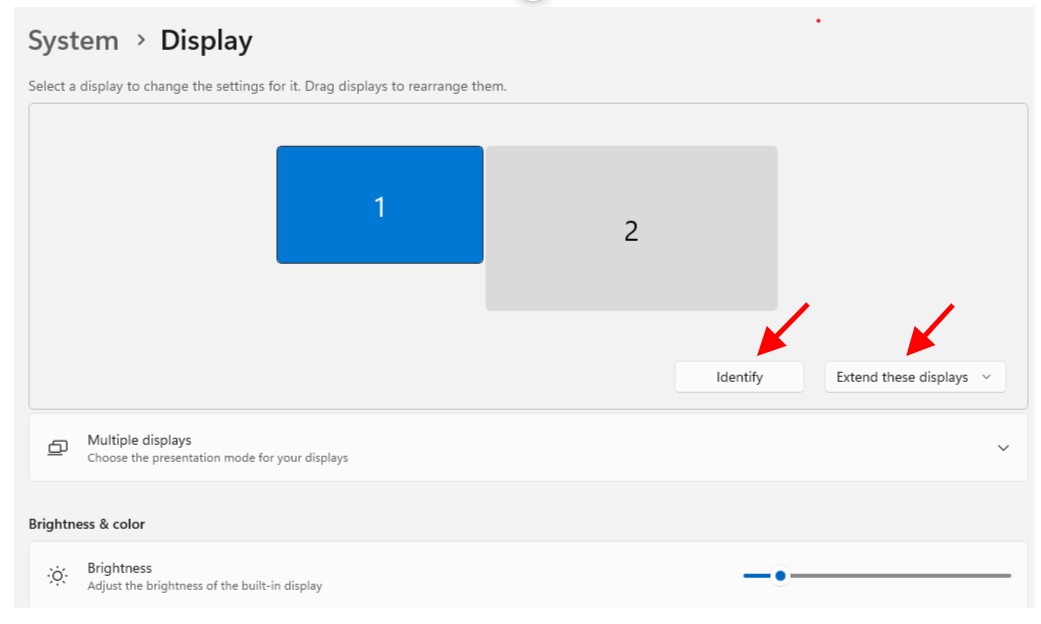
Step 4: Arrange your monitors in settings
Drag the monitor icons in your display settings to match their physical position on your desk. This ensures your mouse moves naturally from one screen to the next. If your side monitor is slightly higher or lower, adjust its position in the settings to match.
Step 5: Adjust resolution and scaling
Set each display to its native resolution for the best clarity. For 4K monitors at 27 or 32 inches, a scaling level of 125% or 150% keeps text and chart labels easy to read. Match brightness and color temperature across all screens so your charts look consistent. This final step ties your entire setup together into a clean, professional workspace for trading.
How to organize your trading workspace?
A clean workspace helps you stay focused and trade with less stress. Even the best monitor setup loses its value if your desk is cluttered and your cables are tangled. Here are the key areas to get right.
Position your monitors correctly. Place your main trading monitor directly in front of you at eye level. The top of the screen should sit roughly at or just below your eye line. Keep it about an arm's length away. If you use two or three monitors, angle the side displays slightly inward so you can see them with a small head turn, not a full twist. Monitor arms from brands like Ergotron or AmazonBasics are a practical upgrade. They free up desk space and let you adjust height, tilt, and distance easily.
Manage your cables. Multiple screens mean multiple cables. Use adhesive cable clips along the back edge of your desk, or run wires through a cable sleeve to keep them bundled. Under-desk cable trays are another simple fix that keeps everything hidden and off the floor. Clean cable management is not just about looks. It also makes it easier to swap or trouble shoot equipment.
Keep your desk minimal. Limit your desk surface to the tools you actually use during a trading session: keyboard, mouse, notepad, and maybe a second input device. Store everything else in a drawer or shelf. A clear desk reduces distractions and gives you room to think.
Protect your eyes. Long hours in front of a trading screen can cause strain and fatigue.
Best habits for screen usage:
enable your monitor's built-in blue light filter or flicker-free mode during extended sessions;
follow the 20-20-20 rule: every 20 minutes, look at something 20 feet away for 20 seconds;
combine natural light with an adjustable desk lamp to avoid glare and harsh shadows on your screens;
keep your room evenly lit so the contrast between your monitors and the background is not too strong.
A well-organized workspace is not a luxury. It is part of your trading setup. When your desk, cables, and lighting are sorted, you spend less energy on your environment and more on the charts.
If you are planning to actually trade or invest after setting up your screens, the platform you choose matters just as much as the setup itself. Different brokers give you access to different assets, tools, and markets, which directly shapes how you use your trading workspace. To make that choice easier, here are some reliable brokers that offer a wide range of assets to get started.
| zForex | Plus500 | Trading.com USA | OANDA | FOREX.com | |
|---|---|---|---|---|---|
|
Min. deposit, $ |
10 | 100 | 50 | No | 100 |
|
Tradable assets |
80 | 2800 | 69 | 129 | 5500 |
|
Demo |
Yes | Yes | Yes | Yes | Yes |
|
Cent |
No | No | No | No | No |
|
Standard EUR/USD spread |
0.3 | 0.7 | 1.1 | 0.3 | 1.0 |
|
Max. Regulation Level |
Not regulated | Tier-1 | Tier-1 | Tier-1 | Tier-1 |
|
Open an account |
Go to broker Your capital is at risk.
|
Go to broker 80% of retail CFD accounts lose money. |
Go to broker Your capital is at risk. |
Go to broker Your capital is at risk. |
Study review |
Start with one good screen, then expand with purpose
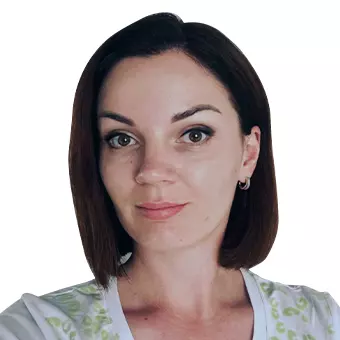
I spent my first year of trading on a 15-inch laptop, and I can tell you it cost me real money. Not because the laptop was slow, but because I kept missing signals hidden behind overlapping windows. The day I added a second 27-inch screen, my execution speed improved almost immediately. I stopped flipping between tabs and started actually seeing the full picture.
My advice is simple. Do not start with four screens because it looks professional. Start with one good display, learn how your platform works on it, and only add more when you feel limited. The traders I know who perform well are not the ones with the most monitors. They are the ones who know exactly what belongs on each screen and why.
Conclusion
The best trading monitor setup is not about having the most screens, but choosing the right monitor tailored to how you trade. Whether you start with a single 27-inch QHD display or expand to a dual or ultrawide configuration, clarity and function should always guide your choices, not flashy hardware. For example, active day traders benefit from two monitors—one for charts and one for order execution—while swing traders often only need one well-positioned screen. Invest in quality displays, prioritize ergonomic organization, and scale up only when your trading style demands it. In the end, your trading results will depend far more on thoughtful setup and discipline than on the sheer number of monitors on your desk.
FAQs
What are the most common mistakes to avoid when building a trading monitor setup?
How does monitor positioning impact trading performance and comfort during long sessions?
Can you use a trading monitor setup effectively with a laptop, and what are the considerations?
What role do blue light filters and room lighting play in a trading monitor setup?
Editors' Top Picks and Insights

Hunting crypto owners: Why criminals have gone offline

BitMEX is shutting down: Why Trump could not save the exchange

Do governments need crypto workers?

Brent nears $100: Why oil prices are rising

Gram Wallet launch: Can Telegram bring crypto to the masses?

AI without limits: How dangerous are neural networks?
Related Articles
Team that worked on the article
Dan Blystone began his trading career in 1998 as an arbitrage clerk on the floor of the Chicago Mercantile Exchange (CME). He later traded bond and Eurex futures at proprietary firms such as Altea Trading, gaining valuable experience in high-frequency trading and risk management.
Chinmay Soni is a financial analyst with more than 5 years of experience in working with stocks, Forex, derivatives, and other assets. As a founder of a boutique research firm and an active researcher, he covers various industries and fields, providing insights backed by statistical data.
A day trader is an individual who engages in buying and selling financial assets within the same trading day, seeking to profit from short-term price movements.
Xetra is a German Stock Exchange trading system that the Frankfurt Stock Exchange operates. Deutsche Börse is the parent company of the Frankfurt Stock Exchange.
Index in trading is the measure of the performance of a group of stocks, which can include the assets and securities in it.
Forex leverage is a tool enabling traders to control larger positions with a relatively small amount of capital, amplifying potential profits and losses based on the chosen leverage ratio.
Risk management is a risk management model that involves controlling potential losses while maximizing profits. The main risk management tools are stop loss, take profit, calculation of position volume taking into account leverage and pip value.
-
 Afghanistan
-
 Albania
-
 Algeria
-
 Angola
-
 Argentina
-
 Armenia
-
 Australia
-
 Austria
-
 Azerbaijan
-
 Bahamas
-
 Bahrain
-
 Bangladesh
-
 Belarus
-
 Belgium
-
 Bolivia
-
 Botswana
-
 Brazil
-
 Brunei
-
 Bulgaria
-
 Cambodia
-
 Cameroon
-
 Canada
-
 Chile
Chile
-
 China
China
-
 Colombia
-
 Congo
Congo
-
 Costa Rica
-
 Cote d'Ivoire
-
 Croatia
-
 Cuba
Cuba
-
 Cyprus
-
 Czechia
-
 DR Congo
-
 Denmark
-
 Dominican Republic
-
 Ecuador
-
 Egypt
Egypt
-
 El Salvador
-
 Estonia
-
 Eswatini
-
 Ethiopia
-
 Finland
-
 France
-
 Georgia
-
 Germany
-
 Ghana
Ghana
-
 Greece
-
 Haiti
Haiti
-
 Hong Kong
-
 Hungary
-
 India
India
-
 Indonesia
-
 Iran, Islamic republic
-
 Iraq
Iraq
-
 Ireland
-
 Israel
-
 Italy
Italy
-
 Jamaica
-
 Japan
Japan
-
 Jordan
-
 Kazakhstan
-
 Kenya
Kenya
-
 Korea
Korea
-
 Kuwait
-
 Kyrgyzstan
-
 Laos
Laos
-
 Latvia
-
 Lebanon
-
 Lesotho
-
 Libya
Libya
-
 Lithuania
-
 Luxembourg
-
 Madagascar
-
 Malaysia
-
 Malta
Malta
-
 Mauritius
-
 Mexico
-
 Moldova
-
 Mongolia
-
 Montenegro
-
 Morocco
-
 Mozambique
-
 Myanmar
-
 Namibia
-
 Nepal
Nepal
-
 Netherlands
-
 New Zealand
-
 Nigeria
-
 North Macedonia
-
 Norway
-
 Oman
Oman
-
 Pakistan
-
 Palestine
-
 Panama
-
 Papua New Guinea
-
 Paraguay
-
 Peru
Peru
-
 Philippines
-
 Poland
-
 Portugal
-
 Puerto Rico
-
 Qatar
Qatar
-
 Reunion
-
 Romania
-
 Rwanda
-
 Saudi Arabia
-
 Serbia
-
 Singapore
-
 Slovakia
-
 Slovenia
-
 Somalia
-
 South Africa
-
 Spain
Spain
-
 Sri Lanka
-
 Sweden
-
 Switzerland
-
 Syria
Syria
-
 Taiwan
-
 Tajikistan
-
 Tanzania
-
 Thailand
-
 Trinidad and Tobago
-
 Tunisia
-
 Turkey
-
 UAE
UAE
-
 Uganda
-
 Ukraine
-
 United Kingdom
-
United States
-
 Uruguay
-
 Uzbekistan
-
 Venezuela
-
 Vietnam
-
 Yemen
Yemen
-
 Zambia
-
 Zimbabwe
- Forex
- Crypto